Manganova

Make your own manga.

A complete manga studio on your Android phone. Sketch on a blank page, split it into panels, drop in speech bubbles, then read your chapter and export it. No account and no ads.

Coming soon to Google Play See what it does
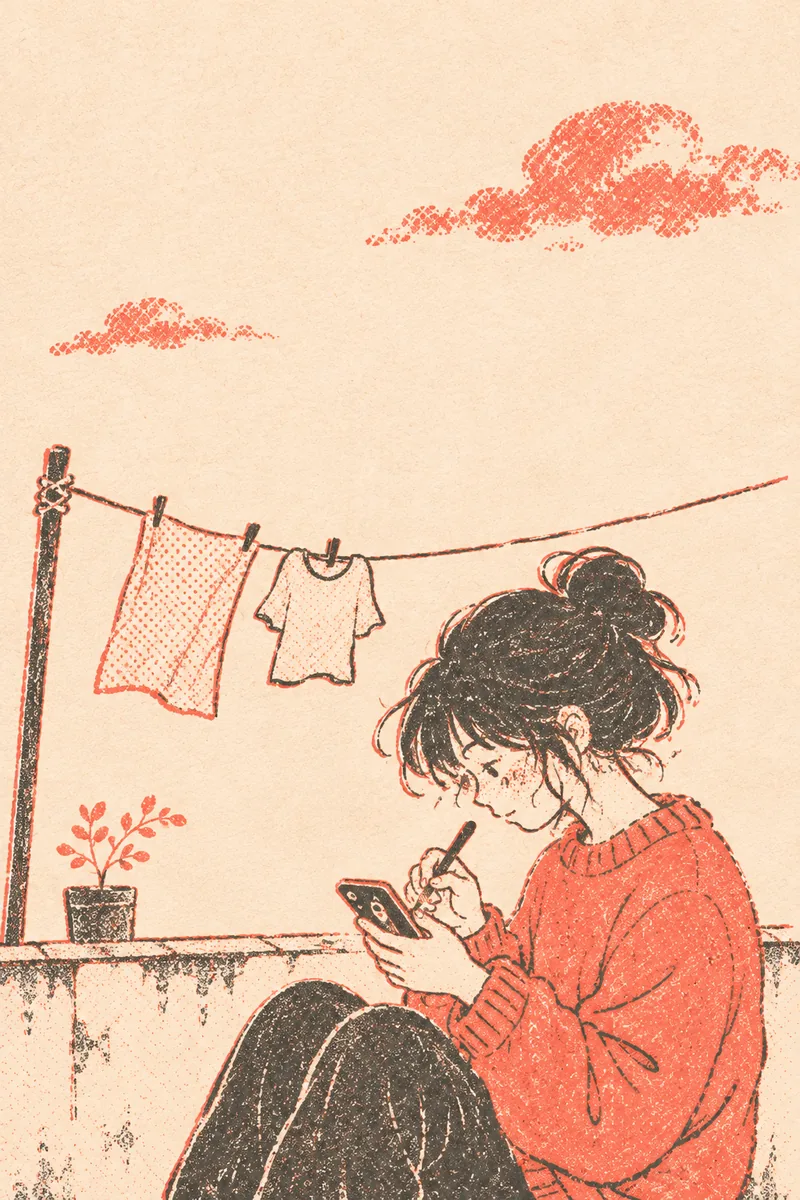
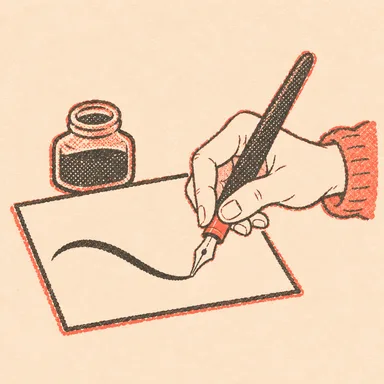
Riso print of an artist inking a manga page
Pen. Panels. Bubbles. Done.

Blank page to finished chapter

Start wherever the idea is. Every step lives in one app, so a sketch on the bus can become a printed page without moving a single file.

  1. Plan

    Outline chapters and write scenes, or skip this and go straight to drawing.

  2. Lay out

    Pick from 31 panel templates, then cut, merge and tilt until the page flows.

  3. Draw

    Ink each panel with pens, layers, tones, rulers and ready-made materials.

  4. Letter

    Add bubbles, narration, SFX text, speed lines and focus lines.

  5. Share

    Read it like a book, then export a PDF, PNG pages, CBZ or a webtoon image.

Canvas

Pens that feel like ink

The canvas gets out of the way. Tools sit in one slim rail, and when your stroke reaches a panel it fades so you can keep drawing. Your page stays the brightest thing on the screen.

  • G-pen, pencil, brush, eraser, shapes, lasso fill and a colour picker
  • Screentone fills at 10, 25, 40 and 60% density
  • Up to 8 layers per panel, with opacity and lock
  • 50 undo steps. Two-finger tap undoes, three-finger tap redoes
  • Stylus pressure, and a stylus mode that ignores your palm
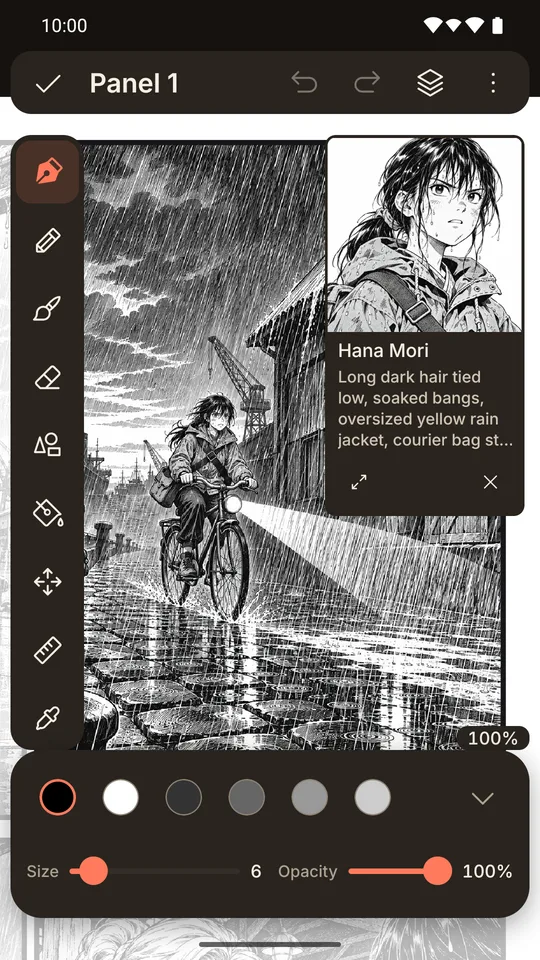
Drawing canvas with a rainy street panel and a character pinned in the corner
Rulers

Straight lines, true perspective

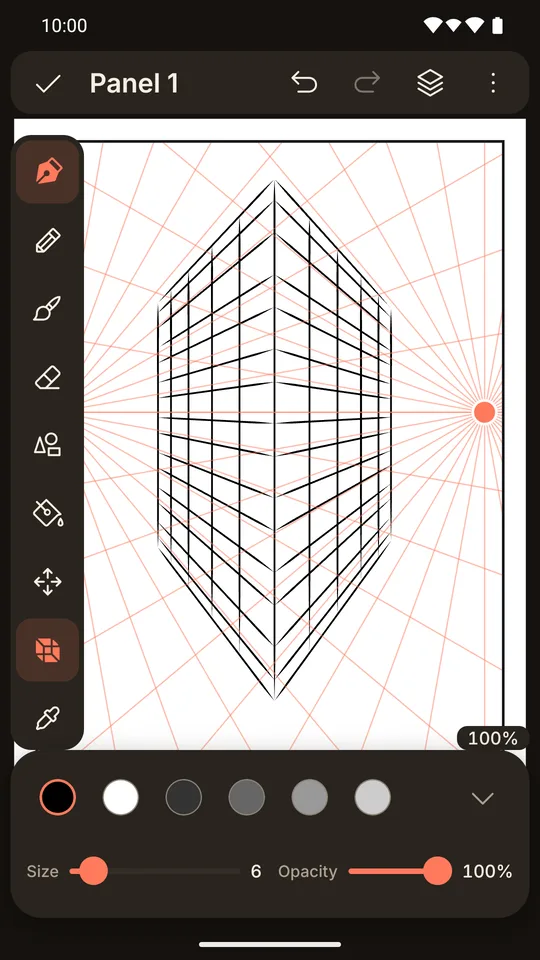
Backgrounds are where phone drawing usually falls apart. Turn on a ruler and each stroke settles on the right line by itself: towards a vanishing point, level, or upright. You keep your hand-drawn line weight, and the building stops leaning.

  • One-point and two-point perspective with vanishing points you can drag
  • Symmetry repeats each stroke across a line you can move
  • One undo takes back both sides of a mirrored stroke
  • Erasers and fills stay free, so clean-up never fights the ruler
A tower drawn with the two-point perspective ruler
Materials

A background in one tap

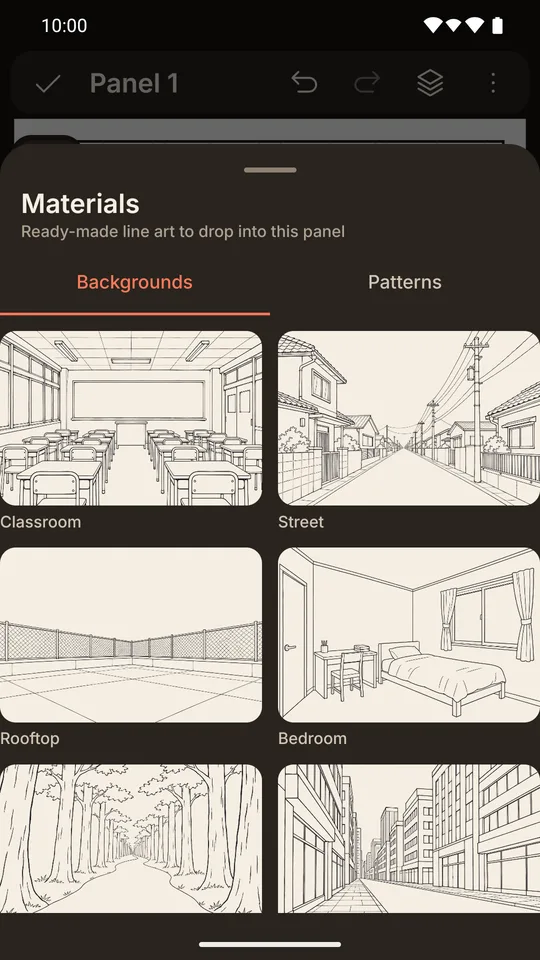
Short on time, or still learning perspective? Drop a ready-made line-art background into a panel and draw your characters on top. It lands on its own layer underneath your drawing, so nothing you made gets covered.

  • Classroom, street, rooftop, bedroom, forest path and city
  • Sparkles, falling petals, rain, impact burst, clouds and leaves
  • Move and resize them with the Move tool, like any other layer
Materials sheet showing six line-art backgrounds
Characters

The same face on every page

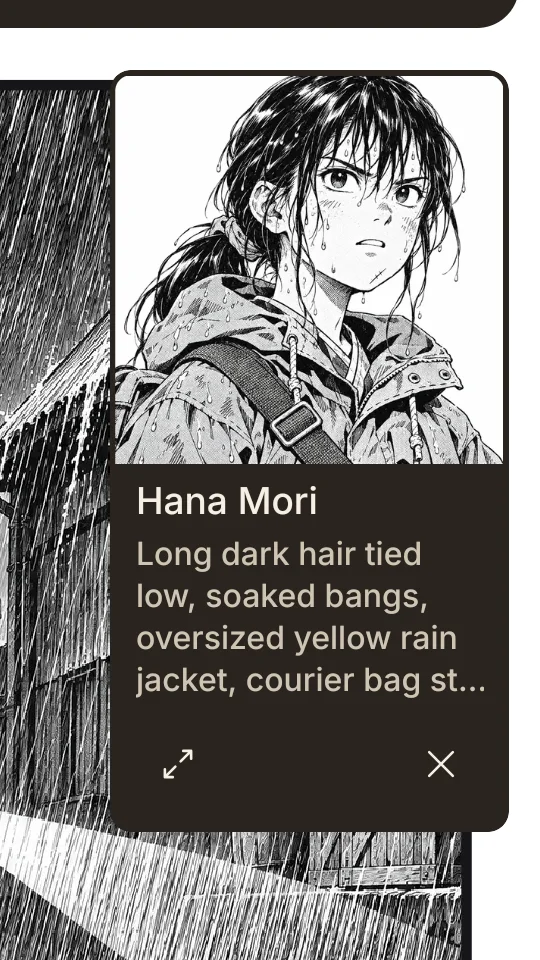
Long stories drift. Pin a character to the canvas and their face, sheet and appearance notes float beside your drawing, so the hair on page forty still matches page one. Drag the window aside or make it bigger whenever you need to.

  • Profiles with role, traits, goal, voice and appearance
  • Face and body sheets, plus six expressions
  • Relationships between characters
A character pinned beside the drawing, with appearance notes
Pages

Panels you can push around

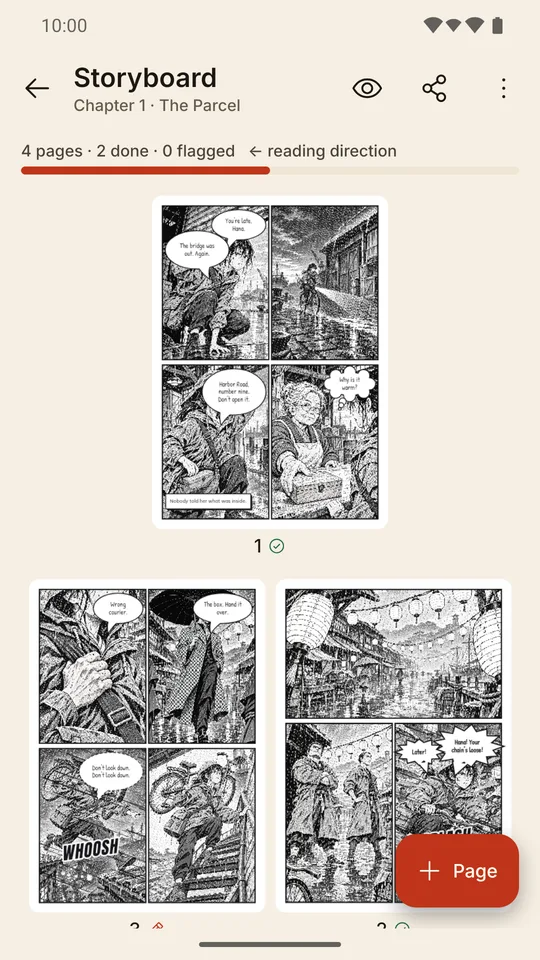
Good page layout is half of manga. Start from a template, then drag the borders until the moment lands. The storyboard shows every page at once, in reading order, so you can feel the rhythm of a chapter and see what is left to draw.

  • 31 templates: grids, diagonal cuts, full bleeds and 4-koma strips
  • Cut a panel with a line, merge panels, tilt corners and set gutters
  • Right-to-left manga pages in B5 or A5, or vertical webtoon strips
  • Drag pages to reorder them
Storyboard showing four manga pages in reading order
Lettering

Words with attitude

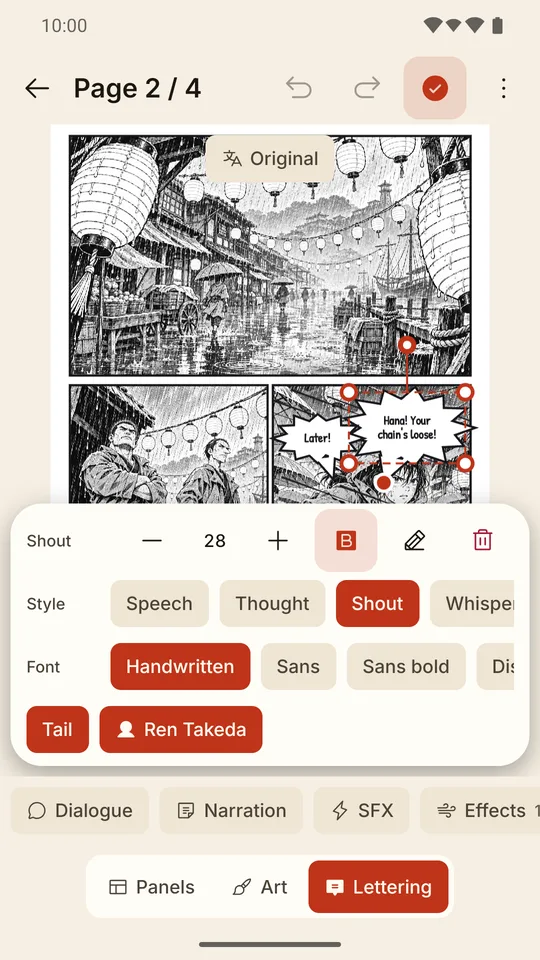
A whisper should look like a whisper. Pick a bubble style, aim the tail at the speaker and let the page slide up so your selected bubble is never hidden behind the controls.

  • Speech, thought, shout, whisper and machine bubbles
  • Narration boxes and SFX text in four lettering fonts
  • Speed lines, focus lines, tones, gradients and sparkles
  • Language versions of every bubble for translated editions
Lettering screen with a shout bubble selected
Story

Write it before you ink it

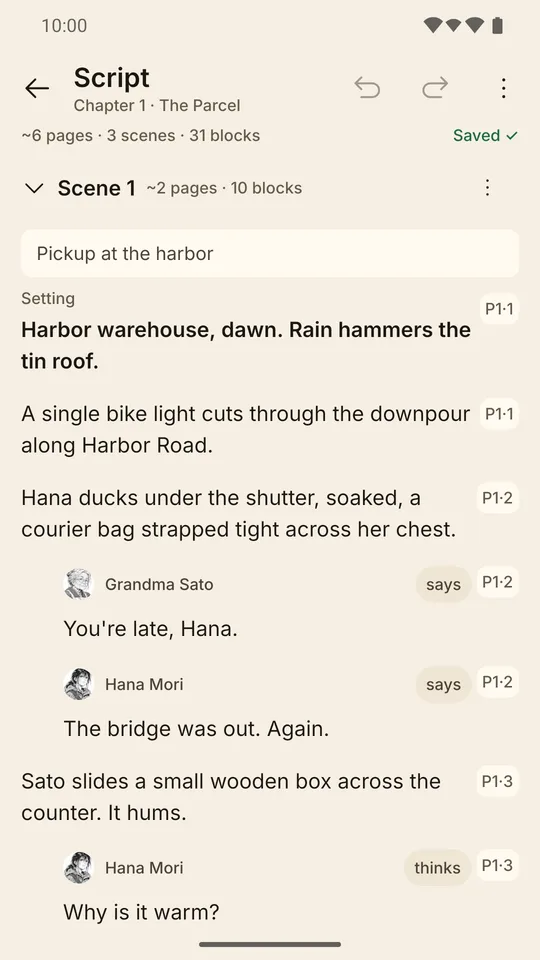
Some stories start as a drawing, others as a sentence. When you want a plan, Manganova has a proper writing room, and it knows about your pages: one tap turns a chapter's script into pages and panels, with the dialogue waiting for you in Lettering.

  • Drag-and-drop outline of acts and chapters
  • Scene blocks for setting, action, dialogue, narration and sound effects
  • A world wiki of places, factions, terms and events, with a timeline
Script editor with scene blocks and dialogue
Read and share

Hold your chapter in your hand

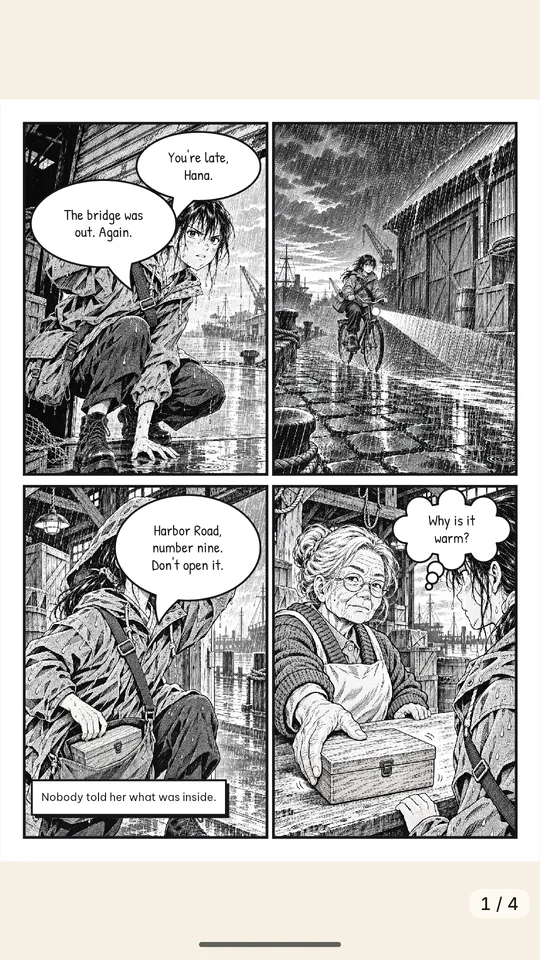
Reading your own pages is when you see what works. Preview a chapter the way a reader will, with spreads in landscape, then send it to friends, an editor or a print shop.

  • PDF for printing, PNG pages in a ZIP, or CBZ for comic readers
  • One long image for webtoon platforms
  • Back up a whole story as one .manganova file and open it on another device
Reader showing a finished manga page

The sample story in these screens is demo content. Its artwork was made outside the app and imported as images, to show what a finished page looks like.

Whatever you want to tell

Pick a style when you start a story. It sets the mood of your shelf, never the limits of your drawing.

ShounenBold lines, action
ShoujoFine lines, romance
SeinenRealistic, detailed
ChibiBig heads, cute
HorrorDeep shadows
Slice of lifeSoft and minimal

Your story stays yours

Manganova keeps your work on your phone. We never see it.

  • No account, no sign-in, no ads and no analytics
  • Works with no internet connection
  • Optional writing help only talks to a server you set up yourself
  • Everything you make belongs to you

Privacy policy · Terms of use

Nothing leaves your phone unless you say so.

Questions

Will the app draw for me?

No. Manganova is a tool for your own hand. The optional writing help works with text only, and it needs a server you set up yourself.

Do I need a stylus?

No, a finger works fine. With a stylus you also get pressure on the pen and pencil, and a mode that ignores your palm.

Does it work offline?

Yes. Drawing, lettering, reading and exporting all work with no connection. Only the optional writing help uses the network.

Which Android version do I need?

Android 7.0 or newer, on phones and tablets.

Can I publish what I make?

Yes. Your comics are yours, including for commercial work. You can use the bundled materials inside your comics too. See the terms for the details.

How do I move a story to a new phone?

Export the story as a .manganova file, move that file across, and open it with Manganova. Your pages, layers and script come with it. There is no cloud copy, so keep a backup.

Can I make webtoons as well as manga?

Yes. Choose the webtoon format when you start a story, and export it as one long image.